Make grouped worksheets easier to understand
Orgvue product update
Grouping worksheet rows helps turn detailed data into a structured view. The labels for those groups now make that structure clearer at a glance.
When you add row groupings, the label column automatically reflects the display names of the properties you selected. Instead of a generic label, readers can see the business meaning of each level in the grouped view.
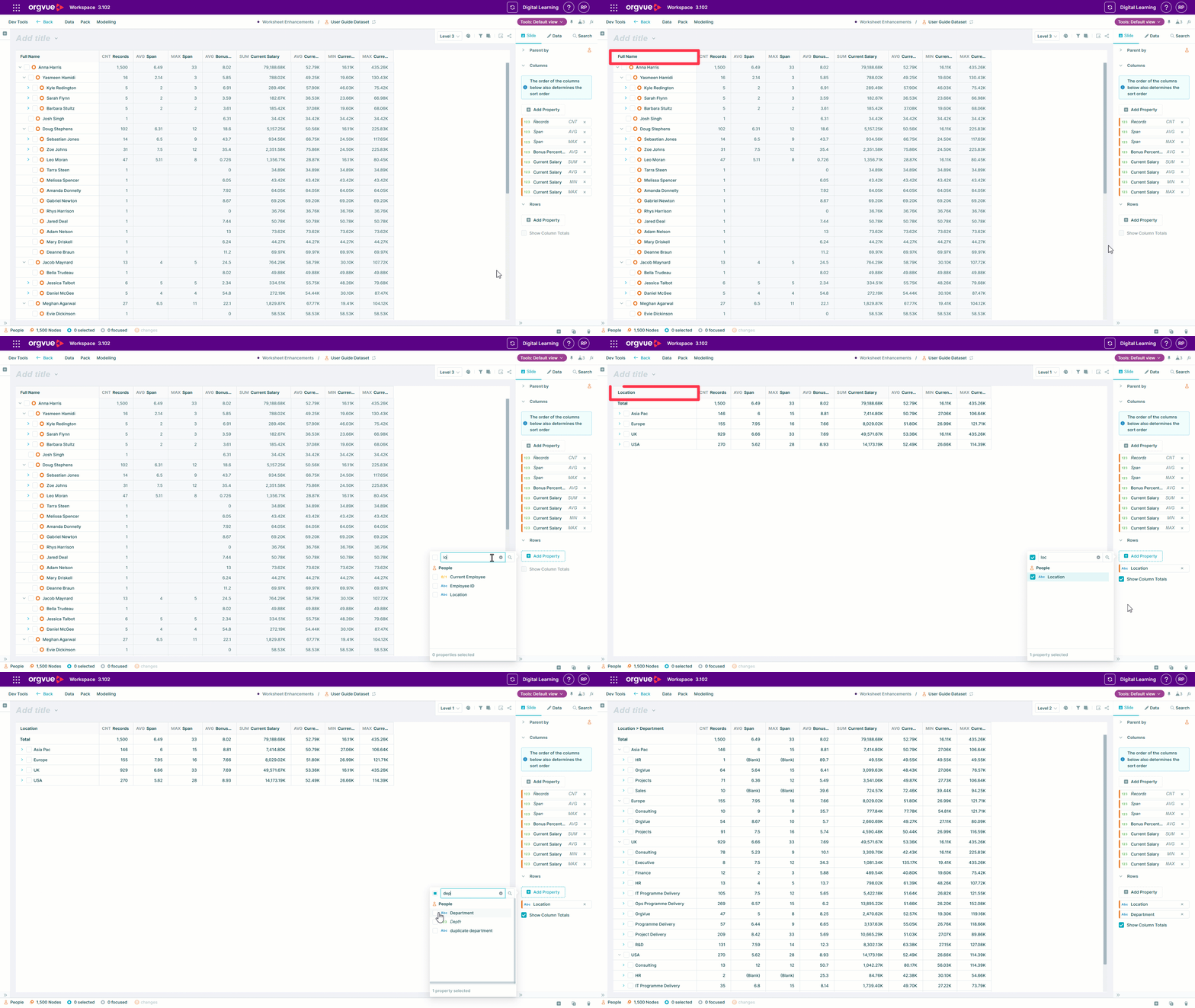
That clearer context helps analysts check they have grouped the right fields and makes the finished worksheet easier for colleagues to interpret. It is particularly useful when a view combines several dimensions, such as business unit, location and role family.
There is nothing extra to configure. Add the row properties you need and Orgvue carries their display names into the worksheet automatically, helping your analysis remain understandable as it moves from creation to review.
Explore the Orgvue platform
FAQ: Grouped worksheets
The label column automatically uses the display names of the properties selected for row grouping.
No. Add the row properties you want to group by and Orgvue carries their display names into the worksheet automatically.
They show the business meaning of each grouping level, making multi-level views easier to check, explain and share with colleagues.