Create presentation-ready bar chart axes in fewer steps
Orgvue product update
Clear axis titles help an audience understand a chart without having to infer what the measures mean. Editing and formatting those titles is now more direct in Orgvue.
Double-click an axis title on the bar chart to change the text, then press Enter to save it. You can also apply bold, italic or bold italic formatting to make the label clearer in the finished visualization.
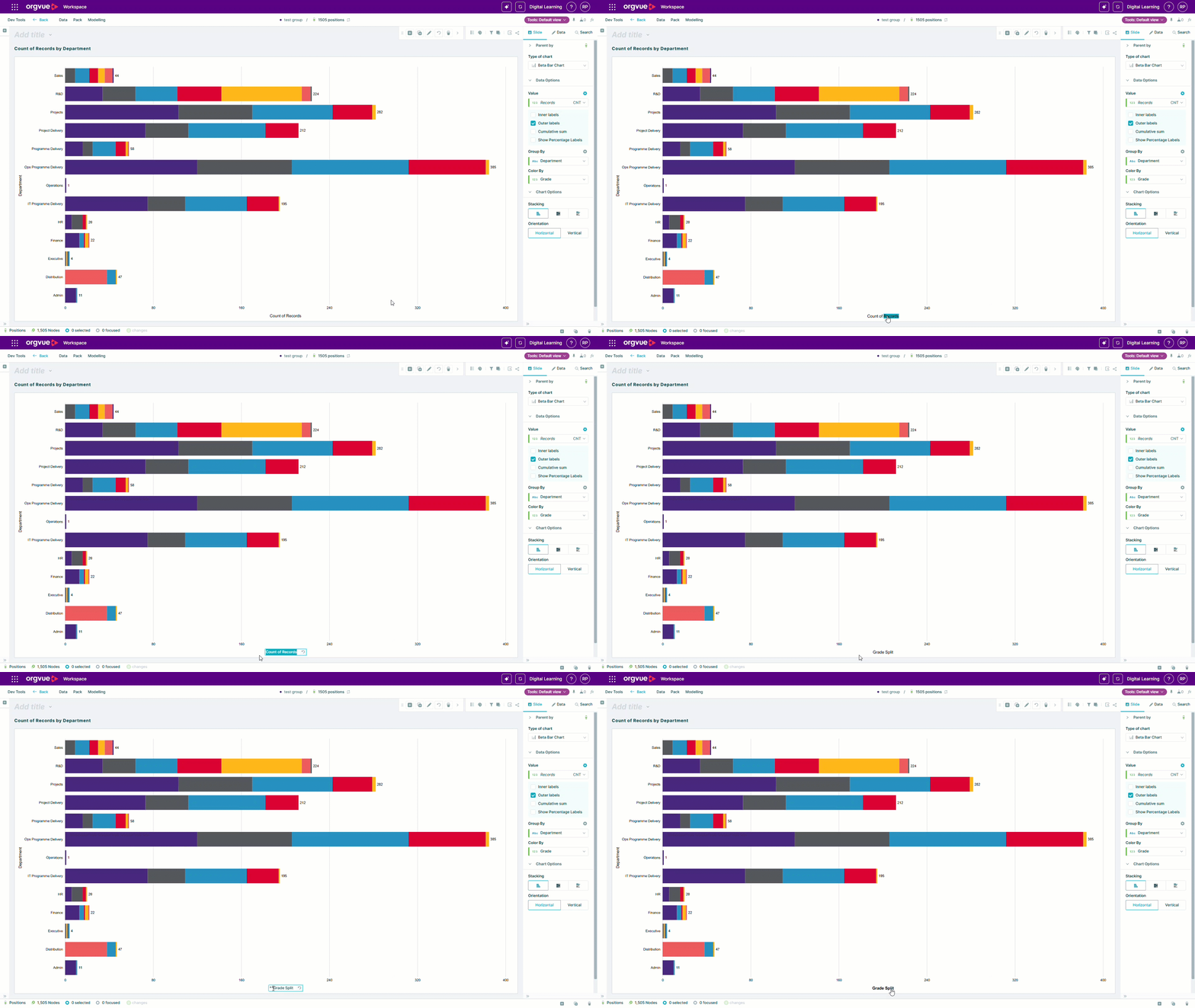
Working directly on the chart reduces the need to move between configuration panels for a simple wording change. It also makes it quicker to add audience-friendly language before sharing a slide or exporting it for a presentation.
Use the formatting selectively: the strongest result is usually a short, specific title that identifies the measure or category without competing with the data itself.
Explore the Orgvue platform
FAQ: Creating presentation-ready bar charts
Double-click the axis title, change the text, then press Enter to save it.
Yes. You can apply bold, italic or bold italic formatting to an axis title.
Direct editing makes it quicker to add clear, audience-friendly wording without moving between configuration panels.