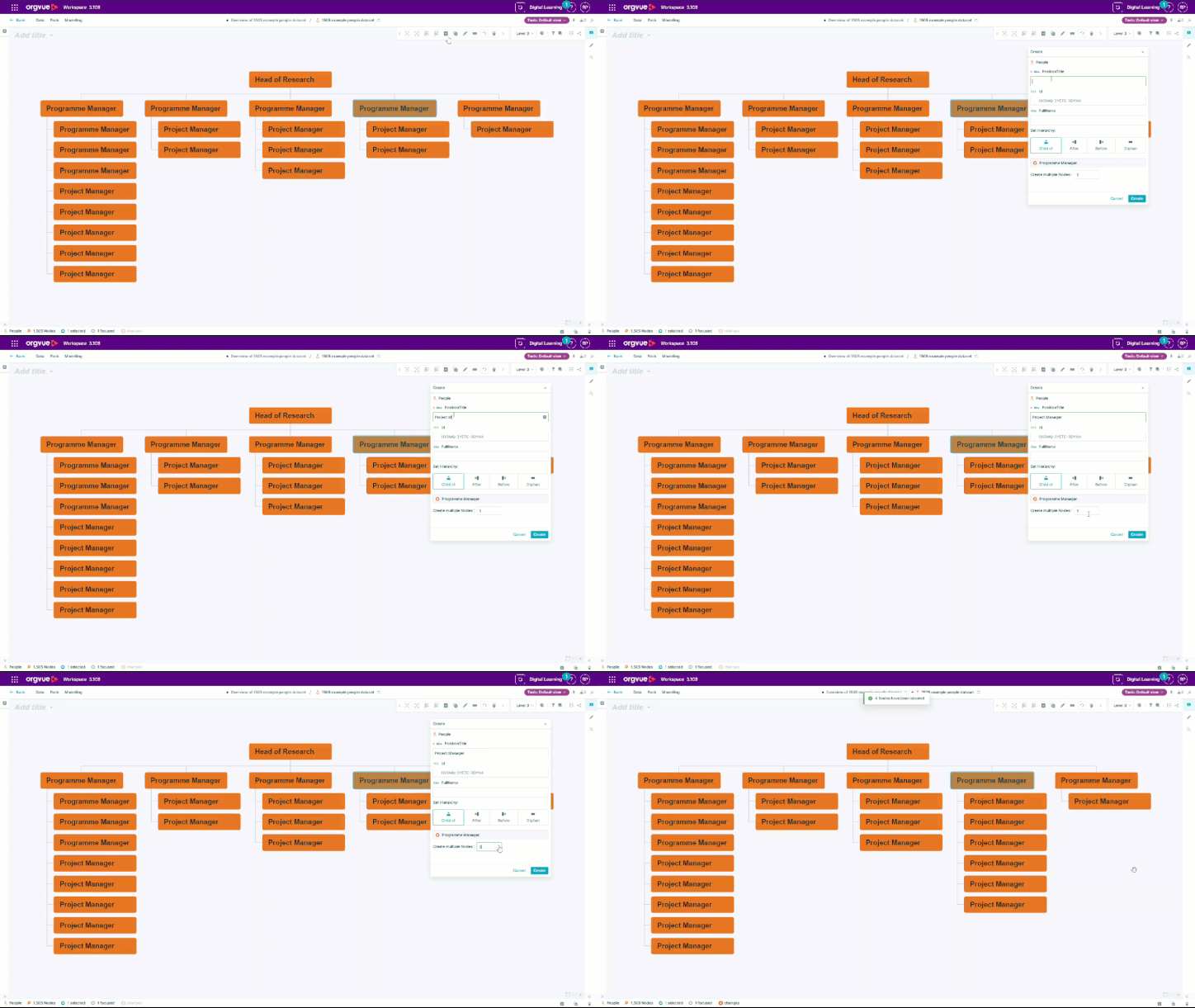
Start editing Workspace slides right away
Orgvue product update
When you open a Workspace slide for the first time, the editing controls you need are now ready and in view.
The edit toolbar opens docked by default. You can begin changing the slide immediately, while the toolbar stays positioned beside the content instead of obstructing it.
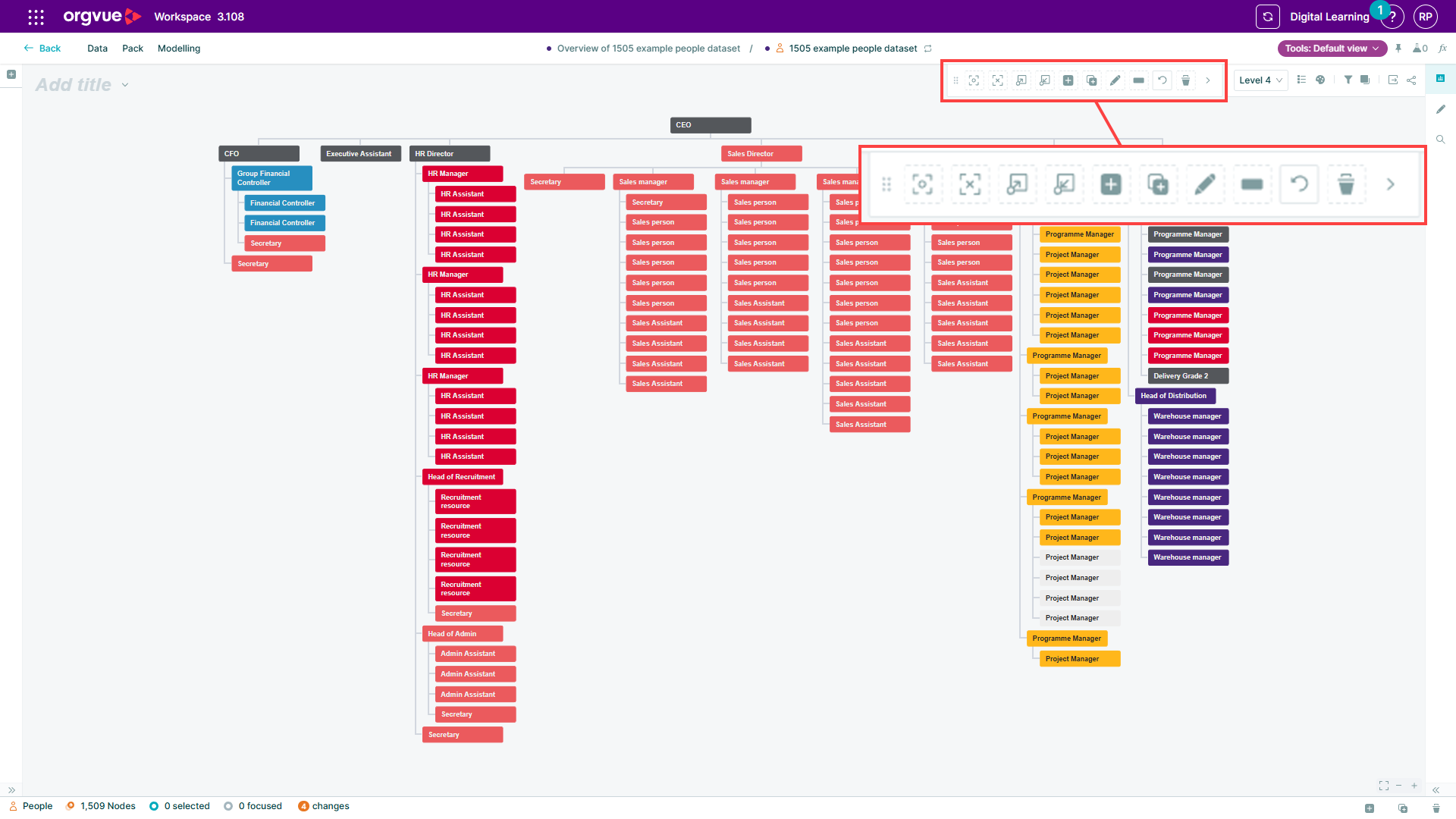
This removes a small but repeated interruption for people who build and refine Workspace content. It also makes the route into editing clearer for occasional users who may not know where the controls are hidden.
The update is designed to help you move from viewing to editing with less setup. Open the slide, choose the control you need and continue working, with more of the canvas left visible.
Explore the Orgvue platform
FAQ: Workspace slides
The editing toolbar opens docked by default, so the controls are ready without covering the slide content.
The toolbar sits beside the content rather than over it, leaving more of the canvas visible while you edit.
It reduces setup for frequent editors and makes the route into editing clearer for occasional Workspace users.