Cleaner worksheet headers put useful context on demand
Orgvue product update
Worksheets often contain many properties, so small improvements to column headers can make a big difference to everyday analysis. We have simplified worksheet headers in Orgvue while making useful detail easier to find when you need it.
Data-type icons are now hidden from the default header view, reducing visual noise and leaving more room for the property names that guide your work.
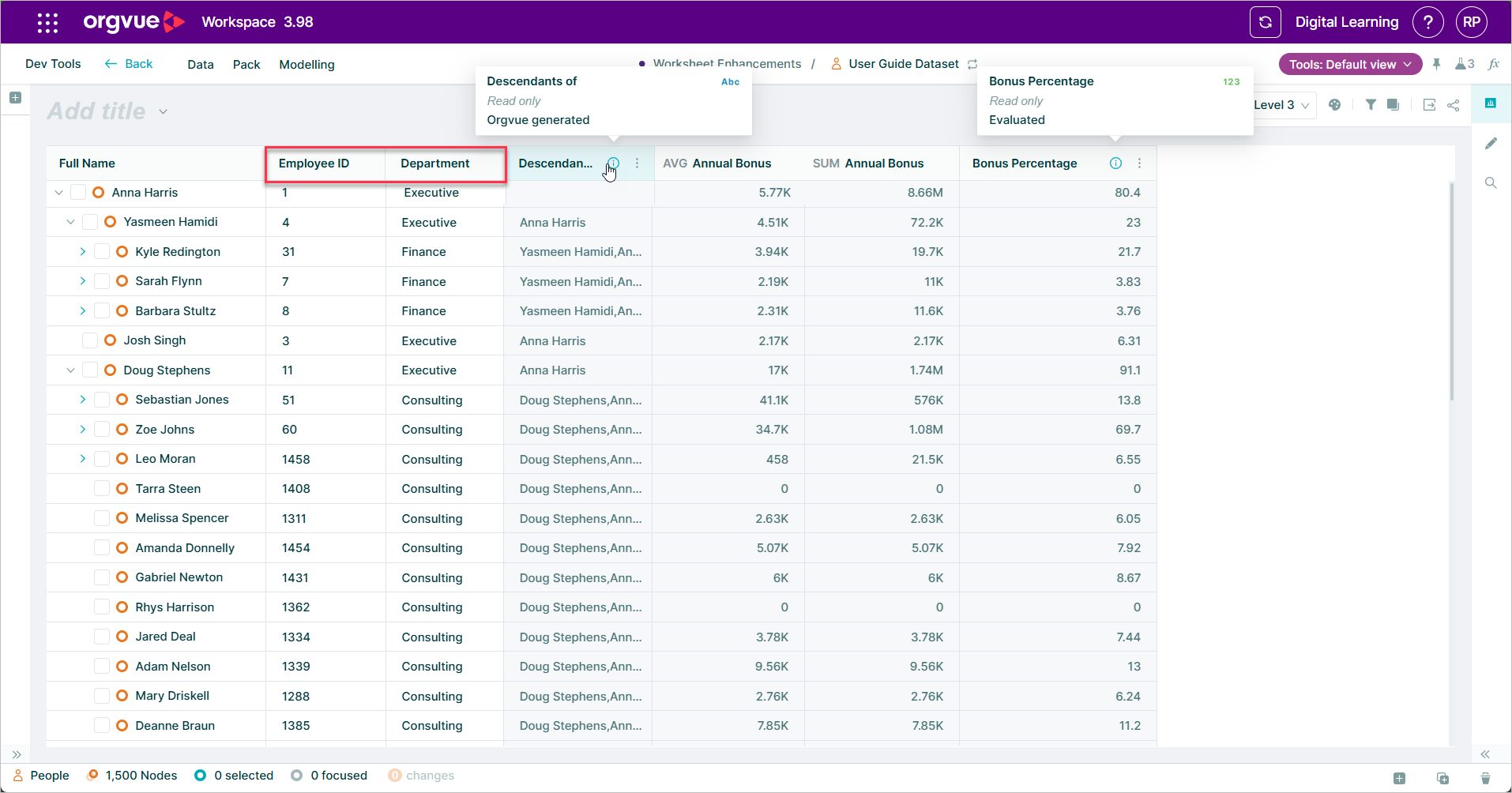
You can also choose whether an aggregation label such as SUM or AVERAGE appears on a column. Show it when the calculation matters to the audience, or hide it when you want a cleaner presentation.
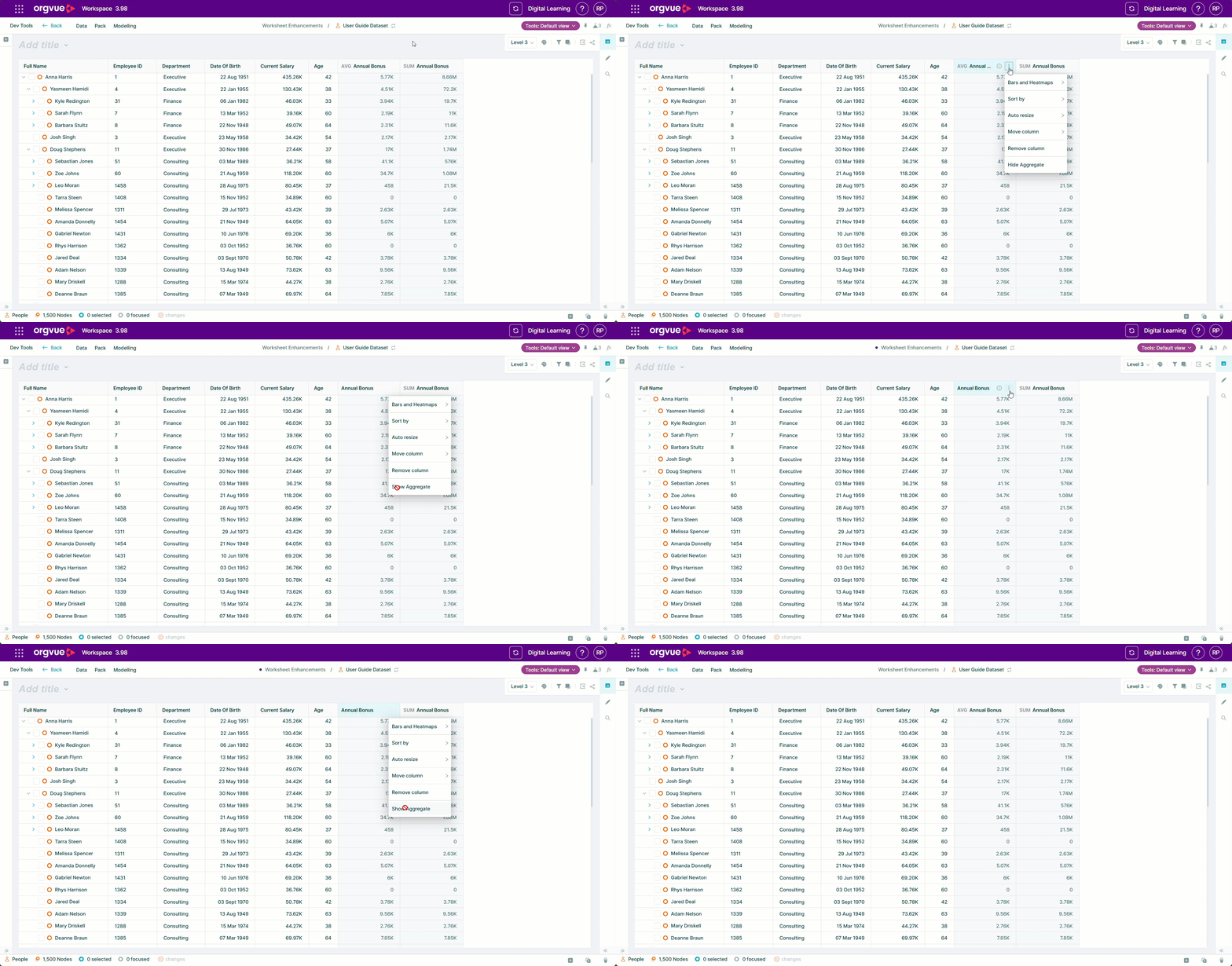
If you need more context, select the information icon for a property to see details including its description and calculation type.
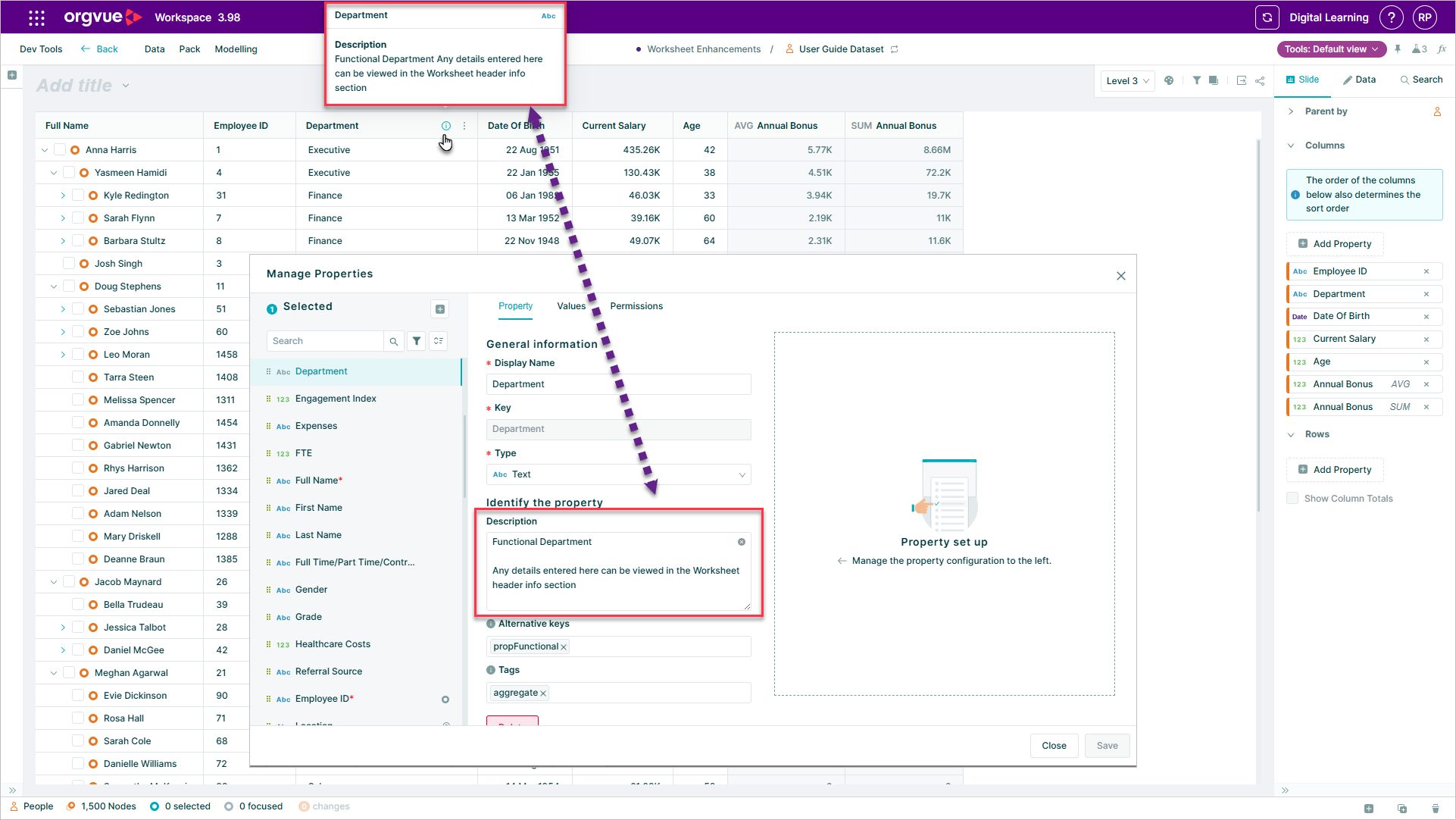
The result is a worksheet that is easier to scan without losing the information needed to understand or explain the data.
Explore the Orgvue platform
FAQ: Worksheet headers
Hiding the icons by default reduces visual noise and leaves more room for property names. The underlying property information remains available when you need it.
Yes. You can choose whether the aggregation label appears on a worksheet column, depending on how much calculation detail your audience needs.
Select the information icon in the worksheet header to see the property’s supporting details, including its description and calculation type.